
If your pages aren’t indexed, nothing else matters.
You can have perfect content, perfect links, perfect SEO tools — but if Google doesn’t index the page, it will never rank. This is one of the most common (and most misunderstood) SEO problems, especially for WordPress sites.
Let’s cut through the noise.
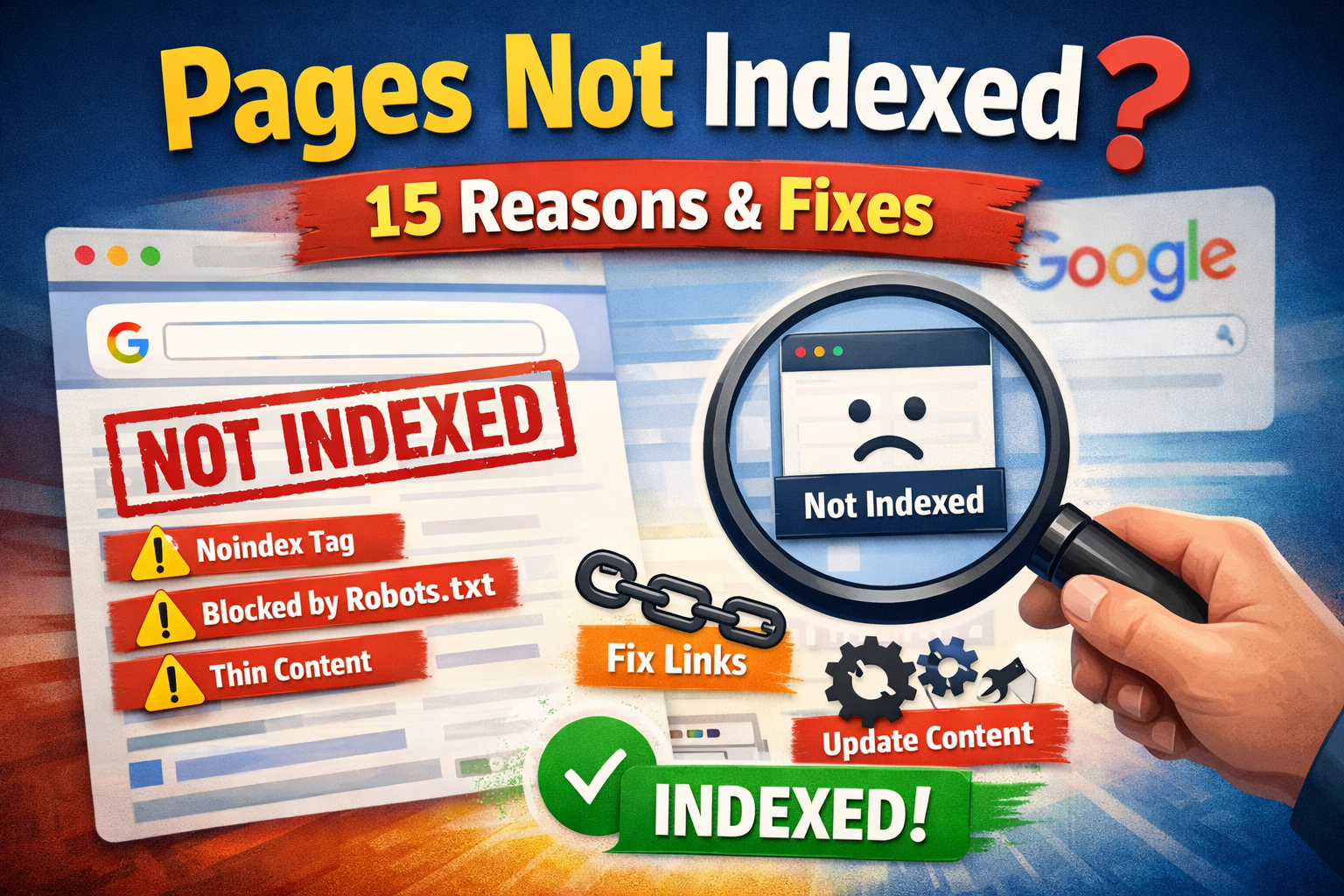
Below are the 15 real reasons pages don’t get indexed, what Google actually means, and exact steps to fix each issue — no theory, no fluff.
Quick answer (save this)
Most pages aren’t indexed because of one of these:
- Google doesn’t see the page as valuable enough
- The page is blocked (robots, noindex, canonicals)
- The site has crawl or internal linking issues
- Google hasn’t prioritized crawling the URL yet
Now let’s break it down properly.
1.
Deep dive: Crawled – currently not indexed on WordPress — full fix guide.
Crawled – Currently Not Indexed (the most common issue)What it means
Google visited the page, but decided not to add it to the index.
This is not a technical error. It’s a quality and prioritization decision.
Why it happens
- Thin or low-value content
- Duplicate or near-duplicate pages
- Weak internal linking
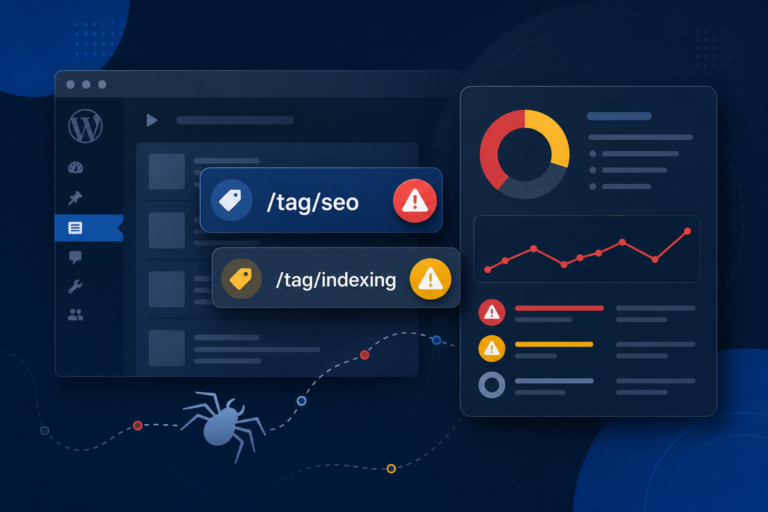
- Too many similar pages (tags, filters, archives)
How to fix it
- Expand the content (add depth, examples, structure)
- Add internal links from strong indexed pages
- Improve title + H1 (clear topic, not generic)
- Make sure the page solves a real query
👉 This is where most WordPress sites fail.
2. Discovered – Currently Not Indexed
What it means
Google knows the URL exists, but hasn’t crawled it yet.
Why it happens
- Crawl budget limits
- Large sites with many low-priority URLs
- Poor internal linking
How to fix it
- Link to the page from your homepage or a hub page
- Add the URL to your XML sitemap
- Remove junk URLs (tags, useless archives)
- Improve site structure
3. Noindex Tag Is Set (Classic mistake)
What it means
Your page literally tells Google: “Don’t index this.”
Where it usually comes from
- SEO plugin settings
- Page-level “noindex” checkbox
- Templates applied to categories, tags, or custom post types
How to fix it
- Check page source for:
<meta name="robots" content="noindex"> - Remove noindex from pages you want indexed
- Be careful with bulk rules in SEO plugins
4. Blocked by robots.txt
What it means
Google is not allowed to crawl the page at all.
Common causes
- Over-aggressive robots.txt rules
- Blocking
/wp-content/,/page/,/blog/by mistake
How to fix it
- Test the URL in Google Search Console → robots.txt tester
- Remove
Disallowrules that block important sections - Only block admin, search, and useless parameters
5. Canonical Points to Another Page
What it means
Google sees your page as a duplicate and prefers another URL.
Common WordPress causes
- Pagination
- Filters
- HTTP vs HTTPS mismatch
- Trailing slash issues
How to fix it
- Check the canonical URL in page source
- Make sure it points to itself (unless intentional)
- Fix duplicate URL versions
6. Duplicate Content (Google sees no reason to index)
What it means
Your page doesn’t add anything new compared to another page.
Common examples
- Category pages with 1–2 posts
- Tag pages with identical content
- Location pages with copied text
How to fix it
- Merge similar pages
- Add unique intro content
- Noindex pages that don’t deserve ranking
7. Thin Content (Yes, Google still cares)
What it means
The page exists, but offers very little value.
Red flags
- <300 words
- No structure (no H2/H3)
- No examples, lists, or explanations
How to fix it
- Answer the search intent fully
- Add sections users actually need
- Don’t write for word count — write for clarity
8. Orphan Pages (no internal links)
What it means
No indexed page links to this page.
Why it’s bad
Google discovers and prioritizes pages via internal links.
How to fix it
- Add links from:
- Homepage
- Category pages
- Related blog posts
- Use descriptive anchor text
9. Sitemap Problems
What it means
Your sitemap includes junk URLs or misses important ones.
Common mistakes
- Indexing tag pages, search pages, paginated URLs
- Missing new posts
How to fix it
- Clean your sitemap
- Include only index-worthy URLs
- Resubmit sitemap after changes
10. Slow Server or Timeouts
What it means
Google gives up crawling your pages.
How to fix it
- Improve hosting
- Use caching
- Reduce heavy plugins
- Fix 5xx errors
11. Too Many Low-Quality URLs
What it means
Your site creates thousands of useless URLs.
Examples
- Filters
- Sort parameters
- Infinite archives
How to fix it
- Noindex low-value URLs
- Block parameters in GSC
- Simplify URL structure
12. New Site or New Page (patience required)
What it means
Google hasn’t built trust yet.
How to fix it
- Build internal links
- Get a few real backlinks
- Publish consistently
13. Soft 404 (looks empty to Google)
What it means
The page technically exists, but feels useless.
How to fix it
- Add real content
- Avoid empty templates
- Improve UX
14. Manual Actions or Security Issues (rare but serious)
What it means
Your site violated guidelines.
How to fix it
- Check Manual Actions in GSC
- Fix the issue
- Request reconsideration
15. Google Just Doesn’t Care (harsh truth)
Sometimes the page:
- Targets zero-demand keywords
- Has no competitive value
- Adds nothing new
Fix
Don’t force indexing.
Focus on pages that deserve to rank.
Final checklist (copy this)
- ✅ Page is crawlable
- ✅ No noindex
- ✅ Self-referencing canonical
- ✅ Strong internal links
- ✅ Valuable, unique content
- ✅ Included in sitemap
If any of these fail, indexing will fail.
Related: When “Request indexing” in Search Console actually works.
Related: When “Request indexing” in Search Console actually works, Discovered – currently not indexed, and WordPress sitemap mistakes.