
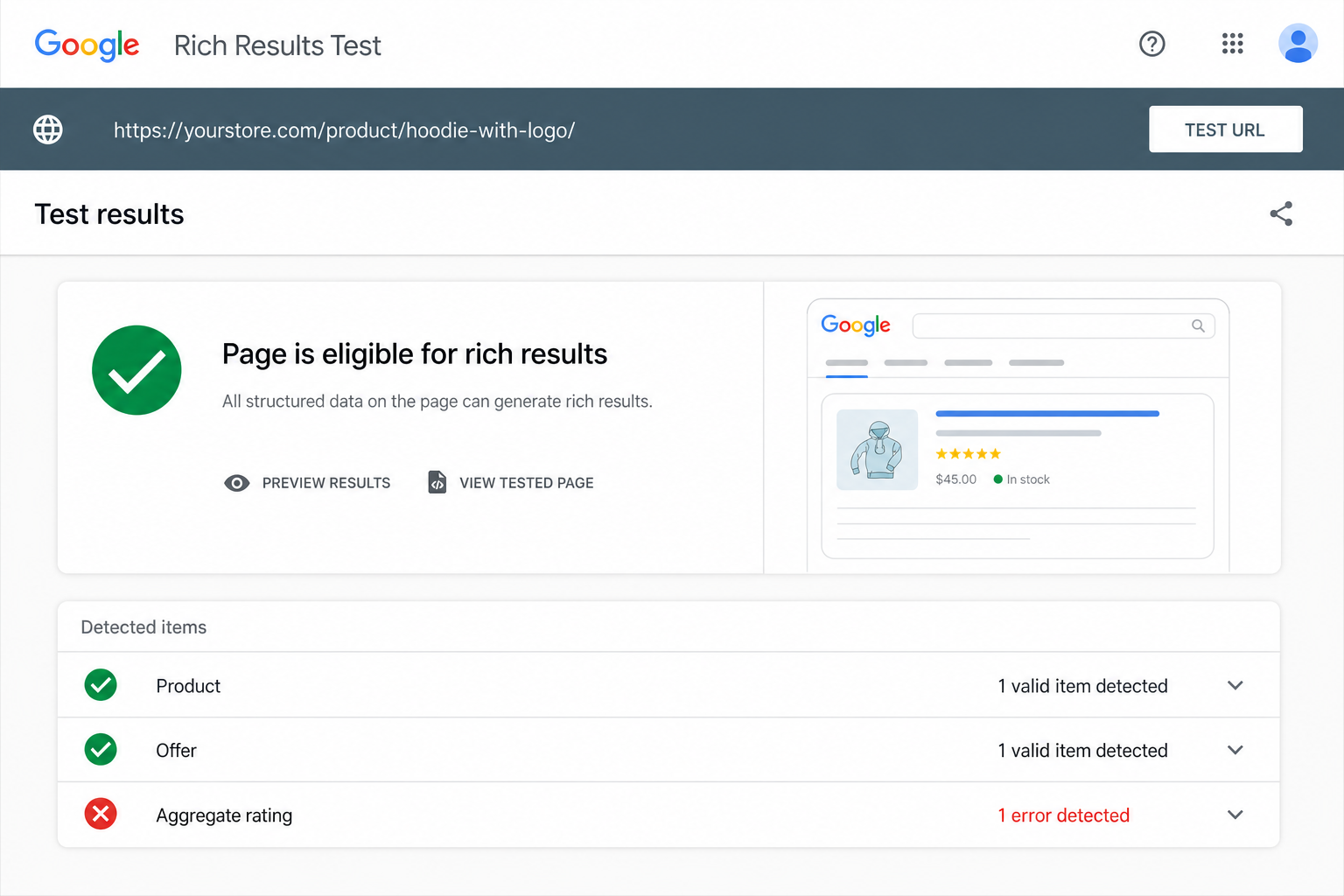
You ran your product URL through Google’s Rich Results Test. It failed. Or worse — it passed in testing but nothing shows in search anyway.
Product schema on WooCommerce is one of those things that should just work. WooCommerce outputs JSON-LD. Google reads JSON-LD. Easy, right?
Except you also have a SEO plugin adding schema. Your theme might add breadcrumbs. A reviews plugin adds aggregateRating. A caching layer serves stale prices. Suddenly you have three Product objects on one page, two different prices, and a review count that doesn’t match what shoppers see.
Google doesn’t reward messy markup. It ignores it — or flags it. Here’s what actually breaks rich results on WooCommerce stores, and how to fix it without ripping out half your stack.
Why Product Schema Matters More Than “SEO Checkbox” Talk
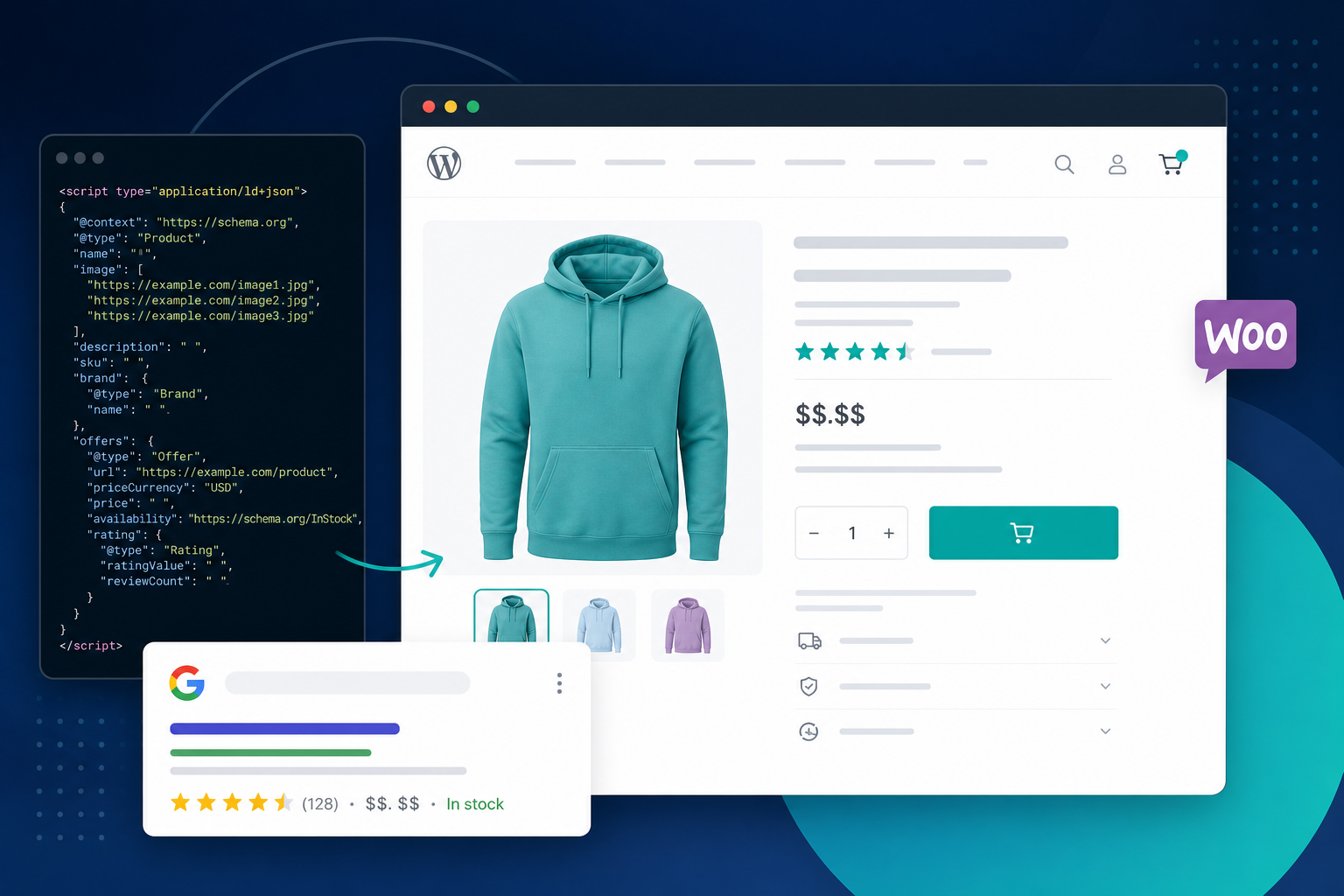
Schema doesn’t guarantee rankings. Nobody serious claims it does. What it does is help Google understand: this is a product, this is the price, this is availability, these are reviews.
When markup is clean, you get a shot at price, availability, and review stars in results. When it’s broken, Google shows a plain blue link while your competitor’s listing shows “In stock · $49 · ★★★★☆.”
For WooCommerce, that gap shows up on category-level queries and branded product searches — exactly where you want the click.
If your product pages aren’t indexed at all, fix that first. Our guide on WooCommerce product pages not showing on Google covers the indexing side. Schema is step two, not step zero.
Mistake 1: Duplicate Product Schema From Multiple Plugins
The most common failure mode: WooCommerce outputs Product schema, Yoast or Rank Math outputs Product schema, and sometimes a blocks plugin adds a third.
Google’s documentation is clear — one primary entity per page. Multiple conflicting Product objects make the parser pick one, merge badly, or drop rich result eligibility entirely.
How to spot it: View page source on a live product URL (not while logged in as admin). Search for "@type": "Product". Count how many full Product blocks you find.
Fix: Pick one source of truth. Usually WooCommerce for product pages. Disable product schema in your SEO plugin for WooCommerce product post types, or use the SEO plugin as primary and disable WooCommerce’s output — but not both.
After changing settings, clear cache (page cache, object cache, CDN) and re-test. Cached HTML loves to lie about what’s live.
Mistake 2: Price in Schema Doesn’t Match Price on Page
Sale prices, dynamic currency switchers, catalog-mode plugins, and “call for price” setups all create mismatches. Schema says $79. The page shows $59. Google treats that as unreliable data.
Same problem with variable products when schema only reflects the default variation but the selected variation changes price via JavaScript.
Fix: Test the default variation and one non-default variation in Rich Results Test. Prices must match visible price at render time — what a crawler sees without clicking “Add to cart.”
If you use multi-currency plugins, confirm schema outputs the same currency code (USD, EUR, etc.) as the visible price. Mixed currency without proper markup is a common silent failure.
Mistake 3: Wrong or Missing Availability
Out-of-stock products marked InStock in schema. Backorder items marked OutOfStock. Products set to “hide out of stock” still sending InStock because the template never updated.
Google uses availability in rich results. Wrong status erodes trust fast.
Fix: Walk through stock states deliberately — in stock, out of stock, on backorder, pre-order if you use it. One URL per state. Re-test after each.
Also check: are you noindexing out-of-stock products? That’s a separate decision from schema, but stores often do one without the other and wonder why nothing lines up in Search Console.
Mistake 4: Review Markup That Doesn’t Match Visible Reviews
Fake review schema was an old black-hat trick. Google cracked down hard. Today the problem is usually accidental: a plugin injects aggregateRating from imported Amazon reviews that aren’t displayed on page, or review count includes pending/unapproved reviews.
Rule: If it’s in schema, a shopper must be able to see it on the page without opening dev tools.
Fix: Remove review schema until your review system is honest and visible. Real WooCommerce reviews with a proper reviews plugin are fine. Imported third-party stars you don’t show are not.
Mistake 5: Breadcrumb and Organization Schema Fighting the Product
Less dramatic than duplicate Product blocks, but breadcrumb errors still pollute the graph. Wrong hierarchy (Home → Product without category), HTTP vs HTTPS item URLs, or breadcrumb pointing to redirected URLs.
Clean breadcrumbs help Google understand site structure. They also show in results when everything else is healthy.
Align breadcrumb URLs with your canonical product URL. If you changed permalink structure last year and breadcrumbs still use old paths, fix that in your SEO plugin settings.
Mistake 6: Testing Staging or Cached URLs
Rich Results Test on a staging domain behind basic auth. Test on a URL that 301s. Test on a cached version from before yesterday’s sale price change.
Always test the exact URL Google would crawl — live, canonical, no redirect chain, cache purged.
A Practical Audit Order for Your Catalog
- Pick 5 products: bestseller, on-sale item, out-of-stock item, variable product, low-traffic long-tail SKU
- View source — count Product schema blocks
- Run Rich Results Test on each URL
- Compare schema price, currency, availability to visible page
- Resolve duplicate schema sources in plugin settings
- Purge all caches and re-test in 24 hours
Don’t schema-audit 4,000 SKUs on day one. Fix the template and plugins once, then spot-check categories.
Where Citence and MiroPage Fit
Manual Rich Results Test on every product doesn’t scale. That’s where audit tooling helps.
- Citence Pro includes WooCommerce product audits and structured data checks — useful when you want batch visibility into schema and on-page issues across products.
- MiroPage SEO handles titles, meta, headings, and content quality on pages and posts — pair it with schema fixes so the page Google reads is worth showing.
Tools don’t replace judgment. They tell you which URLs are worth opening first.
Related reading
- Pages not indexed — 15 real reasons and fixes
- How to get your site mentioned in AI answers — clean product facts help answer engines too
The takeaway
WooCommerce product schema breaks when too many plugins output conflicting Product objects, when prices and availability don’t match reality, and when review markup oversells what’s on the page.
Pick one schema source, fix the five product types that stress your stack, purge cache, re-test. Rich results aren’t magic — they’re structured honesty about what you’re already selling.