
Your pages aren’t indexing. You’ve rewritten meta descriptions, requested indexing twice, read three guides on Crawled – currently not indexed. Nobody checked robots.txt.
It happens constantly on WordPress. A security plugin adds a aggressive rule. Staging robots.txt gets copied to production. An SEO tutorial says “disallow /wp-includes/” and someone disallow’s half the theme by mistake. Googlebot hits your site and turns away before it ever sees your sitemap.
robots.txt doesn’t noindex pages — it tells crawlers what they’re allowed to fetch. Block the wrong path and Google never sees content, canonicals, or schema. Here’s what goes wrong on WordPress and how to fix it without opening your site to crawl chaos.
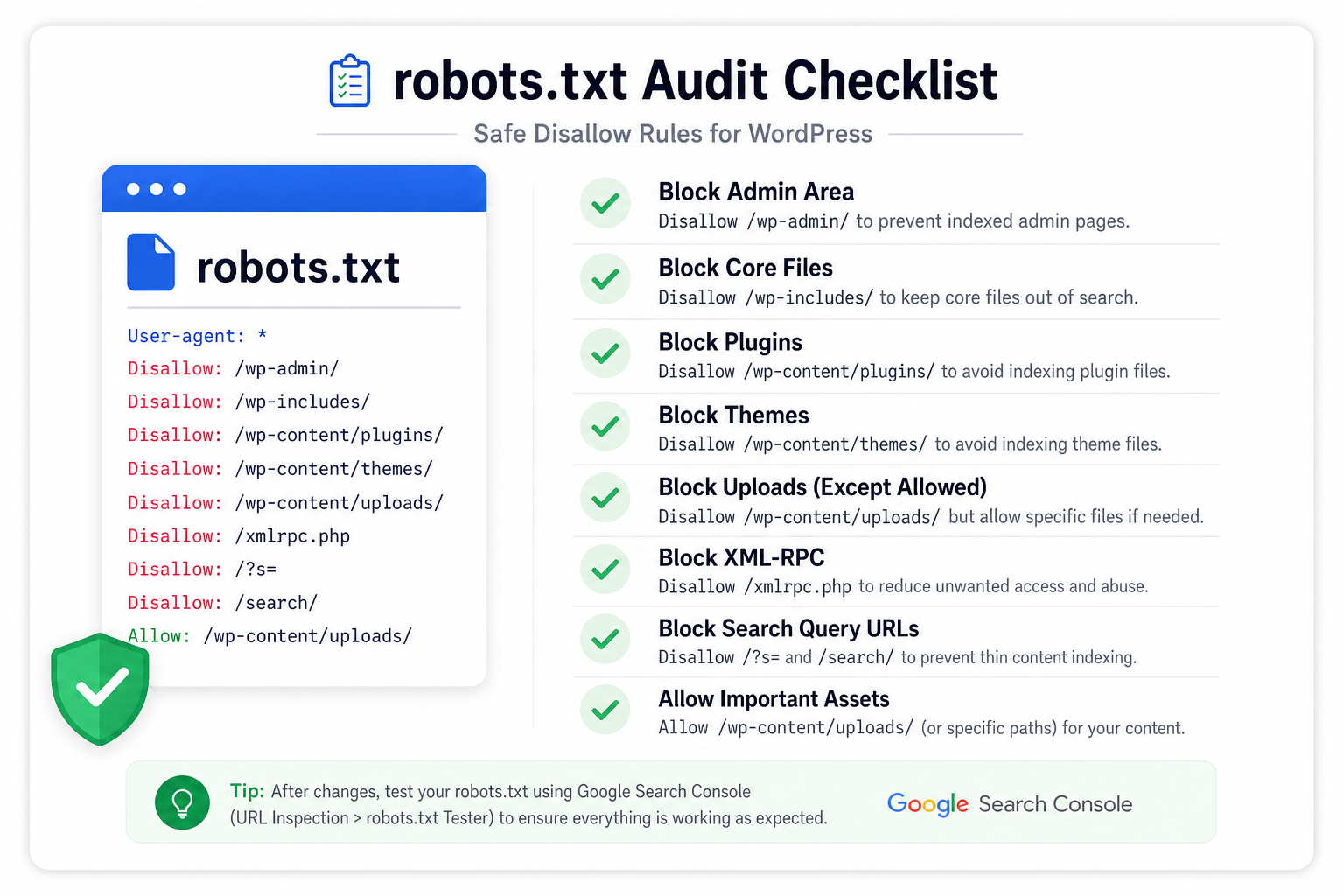
How WordPress robots.txt Works
WordPress generates a virtual robots.txt at yoursite.com/robots.txt when no physical file exists in site root. SEO plugins (Yoast, Rank Math) and some hosts modify this output via filters.
A physical robots.txt in your web root overrides virtual. Know which you’re using — FTP to public_html and check.
Critical distinction: Disallow stops crawling; it does not remove indexed URLs immediately. Noindex (meta or header) prevents indexing. You need both aligned for pages you don’t want in Google — see when to noindex tags vs categories.
Mistake 1: Disallowing CSS or JS (Old Advice, Still Live)
Years ago people blocked /wp-includes/ to “save crawl budget.” Google needs CSS/JS to render pages properly for mobile-first indexing. Blocking assets can hurt rendering and indirectly hurt indexing signals.
Fix: Allow crawling of assets Google needs to render. Standard Yoast/Rank Math virtual robots.txt usually handles this — don’t paste 2014 snippets over it.
Mistake 2: Blocking /wp-admin/ Too Broadly
Blocking /wp-admin/ is correct — admin shouldn’t be crawled. Accidentally blocking /wp-admin/admin-ajax.php breaks some front-end features; rare but worth checking if interactive elements fail in Search Console URL Inspection render.
Don’t block public content paths that contain “admin” in the slug by overzealous wildcard rules.
Mistake 3: Staging Rules on Production
Staging robots.txt often says:
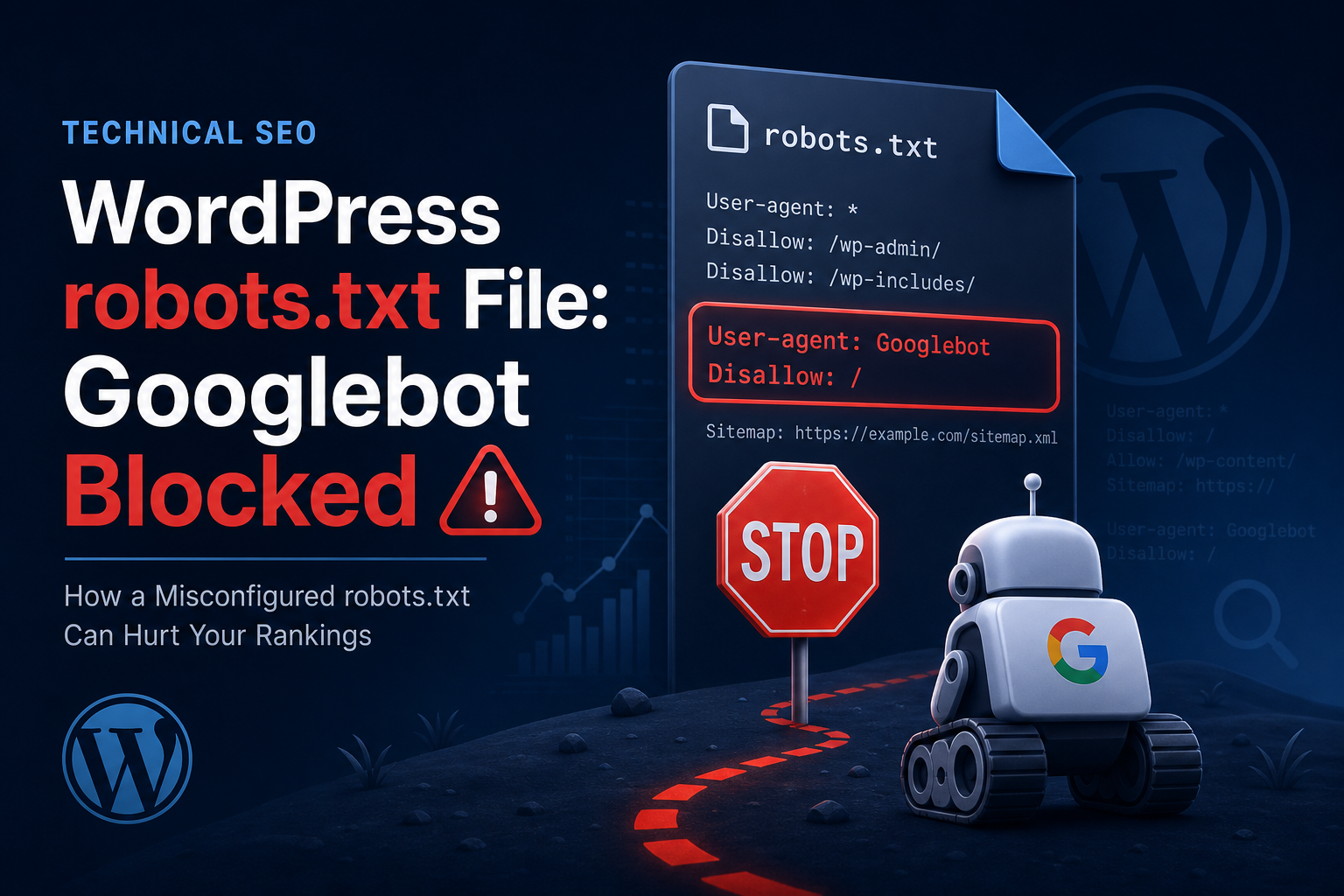
User-agent: *
Disallow: /
Someone deploys it to live. Entire site blocked. Search Console shows crawl anomalies; indexing flatlines.
Fix: Production robots.txt should allow public content. Block only admin, cart, checkout if needed — not the whole site.
Mistake 4: Blocking WooCommerce Paths You Shouldn’t
Disallowing /cart/, /checkout/, /my-account/ — fine. Disallowing /product/ or /shop/ because “we don’t want duplicate content” — you just blocked your catalog.
Pair with product indexing fixes and proper canonicals, not blanket disallow.
Mistake 5: Conflicting robots.txt and Meta Noindex
robots.txt blocks a URL Google can’t fetch to see noindex. URL stays indexed from older crawls — stale snippet hell.
Fix: For pages you want deindexed, allow crawl + noindex meta, or 301 to gone page. For pages you want indexed, allow crawl + no noindex.
Mistake 6: Missing Sitemap Reference
Virtual WordPress robots.txt should include:
Sitemap: https://yoursite.com/sitemap_index.xml
Missing sitemap line slows discovery on new sites — not a block, but fix alongside sitemap mistakes.
How to Audit robots.txt (10 Minutes)
- Visit
/robots.txtlogged out — read every Disallow line - Google Search Console → Settings → robots.txt — check last fetch status
- URL Inspection on a blocked page — “Crawl allowed?” must be Yes for indexable content
- Compare physical file vs virtual — one source of truth
- After changes, test product, post, category URLs
Safe Default Mindset for WordPress
- Allow public posts, pages, products, categories
- Disallow admin, optional: cart/checkout/account
- Don’t disallow feeds unless you have a specific reason
- Include sitemap URL
- Never copy staging “disallow all” to production
Tools
- Citence — site audits catch crawl/index conflicts
- MiroPage SEO — pre-publish checks on pages you need crawlable
The takeaway
WordPress robots.txt mistakes usually block too much — staging rules on live, product paths disallowed, or outdated “block wp-includes” advice. Read your live robots.txt, verify crawl allowed on money URLs in URL Inspection, include sitemap. Fix robots before you rewrite another meta description.